
Troubleshooting User Sync Errors
Your User Sync runs on a schedule and keeps UniversitySite in step with your directory (Active Directory or a database view). On each run it creates accounts for new people, updates existing accounts, and disables accounts for people who have left.
When the sync can't process someone, the run shows an error. You see errors in the sync results email and in Global Settings → User Sync Log → Profile Sync (see User Sync Log). Set the Result filter to Error to list only the people who need attention.
Use this article to understand the most common error, fix it, and prevent it from happening again.
How the Sync Recognizes a Person
Each record in your directory must be matched to one UniversitySite account. The sync tries these identifiers in order and uses the first one that finds an account:
- Directory unique ID: the Active Directory object GUID, or the column you chose as the Unique Identifier for a database sync (often an employee or person ID). This ID isn't shown on the user's page.
- External ID, if your sync provides one (rarely used).
- Network Alias: the person's directory username or Windows login.
- Email address: only when nothing above found an account.
When the sync finds an account, it updates it with the directory's current values, including the email address, Network Alias and unique ID, and enables or disables it to match the directory. When it finds no account, it creates one.
Two consequences matter:
- Once an account holds a person's directory unique ID, the sync always updates that account, even if it's disabled and a different account has the person's current username or email.
- Changing the email address or Network Alias on that account doesn't break the link. Only removing the account does.
The Violation of UNIQUE KEY Constraint Error
The most common error looks like this:
Violation of UNIQUE KEY constraint 'IX_Users'. Cannot insert duplicate key in object 'dbo.Users'. The duplicate key value is (jane.smith@yourfirm.com). The statement has been terminated.
Two UniversitySite accounts can't share an email address. This error means the sync matched the person to one account (by unique ID or username) and tried to give it the email address from your directory, but a different account already uses that address.
In almost every case the same person has two accounts:
- The account the sync is matching, usually an older one created by the sync under a former name, a formal first name, or an earlier username. It's often disabled.
- The account that holds the email address, usually the one the person actually uses, often created by hand.
Because the sync can't finish the update, nothing about this person (name, title, office, manager, enabled status) is updated from your directory until you resolve it.
How It Happens and How to Prevent It
Duplicate accounts almost always begin with one of these situations. Each has a simple habit that prevents it.
Creating an account by hand for someone who already has one
A returning employee, a transfer, or someone whose name changed often already has an account, even if it's disabled. A new account created by hand gives that person a second account, and the sync stays matched to the first.
Prevent it: before you create a user, search Users with the status filter cleared (so disabled accounts show). Search by last name, any former last name, and the formal first name (Jennifer as well as Jen). If an account exists, use it. When the person is active in your directory again, the sync re-enables their existing account and their training history stays with them.
Giving a new hire access before the sync runs
This is fine if the account matches what your directory will send. The sync falls back to Network Alias and then email, so it links the account when the first sync after the hire runs.
Prevent it: use the person's exact directory username as the Network Alias and their directory email address. If you're not sure of either, wait for the sync to create the account. If a duplicate was already created, see How to Merge Duplicate User Profiles.
Name changes and nicknames
When a name changes, change it in your directory and let the sync update UniversitySite. Don't create a new account for the new name, and don't edit the email address by hand on an account the sync manages, because the next run sets it back from the directory.
Personal email addresses in the directory
If your directory lists a personal address that an old account already uses, the sync collides with that account. Keep firm addresses in the directory wherever possible.
Steps to Resolve
- In Global Settings → User Sync Log → Profile Sync, set Result to Error, then copy the email address shown in the error.
- In InstructorSite, select Users.
Use the search box on the Users page, not the global search at the top. - Clear the status filter so that disabled accounts appear.
- Search for the first part of the email address, for example jane.smith.
The account that holds the email address appears. - Search again for the person's last name, any former last name, and their formal or short first name.
The second account appears. This is usually the account the sync is matching. - Open each account and compare:
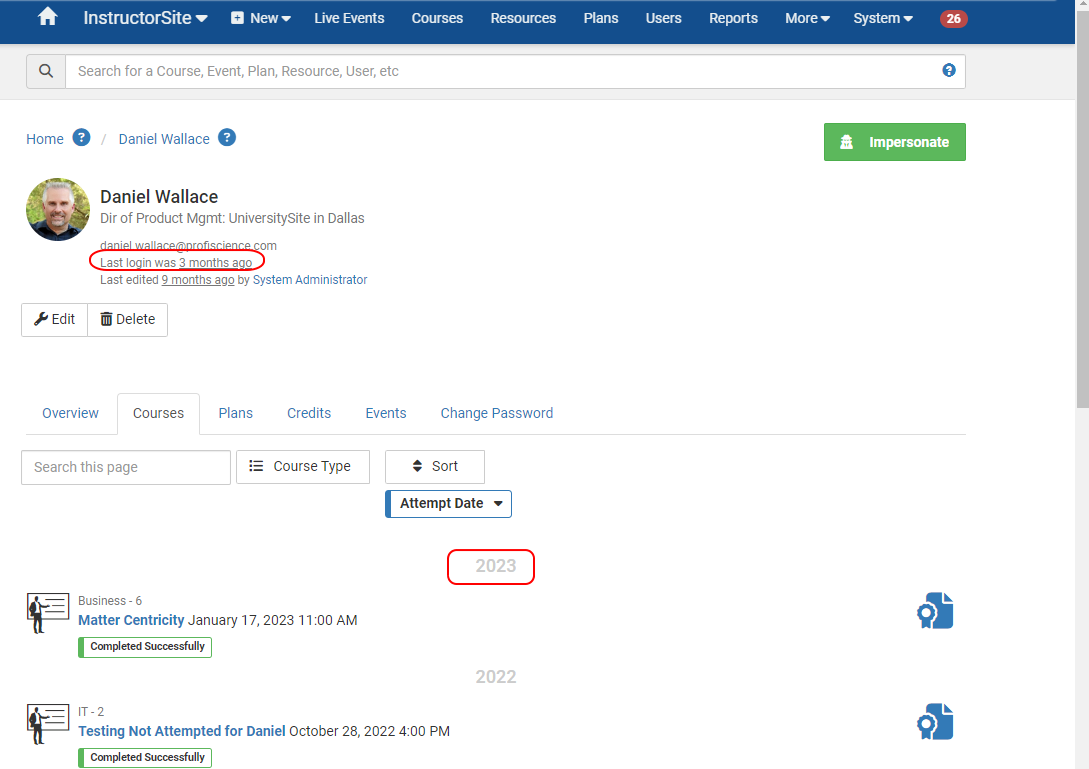
• Created: "by Anonymous User" usually means the sync created it, and a person's name means someone created it by hand.
• Network Alias on the Overview tab: the account whose alias matches the directory username is the one the sync is matching.
• Last login and the Courses tab: how much training history each account has, and how recent it is. - Decide which account to keep, using the table below.
- Check the Profile Sync tab after the next sync.
The person shows as Updated instead of Error.
Choose the Fix
| What you found | What to do | What the next sync does |
|---|---|---|
| The account the sync is matching has no training history worth keeping | Delete that account. | Finds no account by unique ID or username, falls back to email, and links the account the person uses. It also updates that account's username and unique ID, so the link is permanent. |
| The account holding the email address has no history worth keeping | Delete that account, or change its email address (for example, jane.smith.old@yourfirm.com) if you want to keep it on file. | Updates the account it was already matching with the email address and re-enables it if the person is active. |
| Both accounts have history you need | Keep the account the person uses. Save the other account's history first (run the Course History report for that person), then delete it. To move the history into the kept account, follow How to Merge Duplicate User Profiles. | Links the kept account, as in the first row. |
| The two accounts belong to different people who share an address | Correct the email address in your directory. | Updates each person normally. |
Important: Deleting an account permanently removes its training history. Check the Courses tab before you delete.
Other Errors
- Multiple records exist for NetworkAlias (or for ActiveDirectoryObjectGuid or ExternalUniqueID): two accounts share an identifier the sync uses to match. Search Users for the value, keep one account, and change or remove the value on the other.
- OfficeLocation does not exist: this is a warning, not an error. The person is saved with Unknown Location. Add the office under Global Settings → Office Locations and Rooms with exactly the name your directory sends.
- People are missing or not updating, with no error: see Users Missing or Not Updated in UniversitySite.
Frequently Asked Questions
Why does the error say "Cannot insert" when the sync was updating an account?
The message comes from the database and uses the same wording for new and updated records. Because the sync matches by email address when nothing else matches, this error almost always means it was updating a different account than the one that holds the address.
I changed the Network Alias on the account the person uses. Why does the error continue?
The sync checks the directory unique ID before the Network Alias. If the other account holds the unique ID, the sync keeps matching it. Remove that account (or follow the merge steps) to release the link.
Can I see an account's directory unique ID?
No. It isn't shown in InstructorSite. Use the Network Alias, the Created by line, and the person's history to tell which account the sync is matching. Contact support if you can't tell.
Will deleting the duplicate disable the person or lose their training?
Deleting removes only that account and its history. The account you keep stays as it is, and the next sync updates it from your directory, including enabling it if the person is active.
A returning employee's old account is disabled. Should I create a new one?
No. Once the person is active in your directory, the sync re-enables the old account, and their earlier training stays with them. If you need access before the next sync, enable the old account instead of creating a new one.
Can UniversitySite merge two accounts automatically?
No. Choose which account to keep. To carry over records from the other account, follow How to Merge Duplicate User Profiles.
How quickly will I know the fix worked?
At the next scheduled sync, usually overnight. On the Profile Sync tab, the person shows as Updated and the error count drops.