
Send Evaluations After an Event
Send attendees the evaluation form after a Live Event, so they can rate the Course and its instructors. Requests aren't sent automatically: you send them once attendance is recorded. Event managers can do this from the Event's page in InstructorSite.
If your screens look different from these, your site is still on the previous design. The tasks are the same, but some labels and their places differ.
Before You Begin
- The Event's Course needs an evaluation form. The form is set on the Course, not the Event. See Create and Use Custom Evaluation Forms.
- To collect instructor ratings, turn on Collect Instructor Ratings in that form.
- Enable Evaluation Submission should be on. On the Evaluation Forms page, select Evaluation settings to check. Without it, attendees don't get the evaluation on their To-Do page.
Choose Which Instructors Are Rated
- On the Event's page, select Edit.
- In Contacts, turn on Ratings for each instructor attendees should rate.
- Select Save Event.
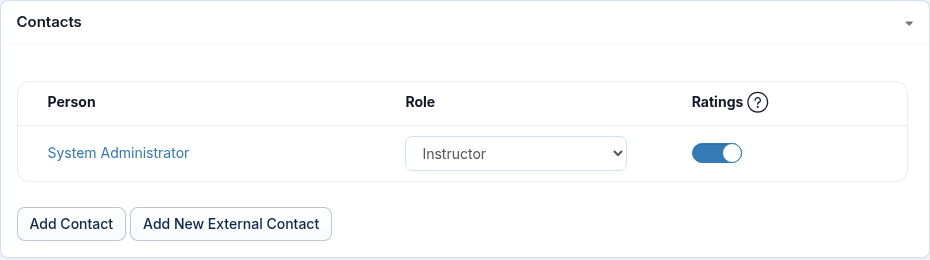
The Ratings column shows n/a when the Course's form doesn't collect instructor ratings.
Send the Evaluation Requests
- After the Event, mark attendance and select Save Registrants. See Record Attendance for an Event.
People marked Attended get the evaluation on their To-Do page. - On the Registrants tab, use Select to choose the people who attended.
Don't select everyone: no-shows and people still marked Registered would get a request too. - Select Send, then Send Evaluations.
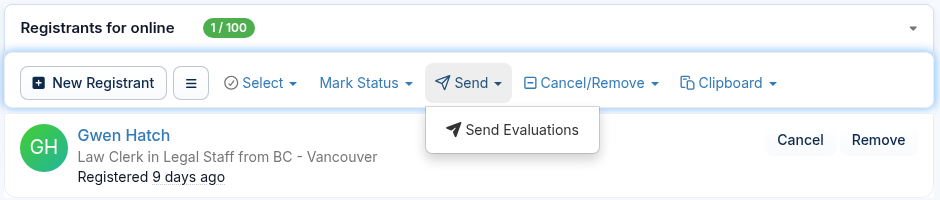
To send to one person, open their row and select Send Evaluation.
The Live Events page also lists Events with unsent requests. Under Needs your attention, open Send evaluation requests, then select Send evaluation request for an Event. Its Mail Manager opens.
What Happens Next
- Each person you selected gets an email with a link to the form.
- The evaluation also appears on their To-Do page in LearningSite, under Ratings. The bell in the top bar opens that page.
- The attendee answers the questions and selects Submit.
- You review the answers on the form's Submissions tab. See Create and Use Custom Evaluation Forms.
Frequently Asked Questions
Why didn't the evaluation requests go out after I recorded attendance?
Send them from the Registrants tab, as described above. Saving attendance makes attendees due an evaluation, but it doesn't email them.
Why isn't Send Evaluations in the Send menu?
Set an evaluation form on the Event's Course. Without one, the Event can't send evaluations.
Why did a test send use the built-in form instead of mine?
Set your form on the Course. An Event always uses its Course's form, and the default form only applies to new Courses.
People whose attendance was saved before you changed the Course's form keep the form they were given then.
Can I send evaluations for an Event that's already over?
Yes, from the Registrants tab as above, even if you set the Course's form after saving attendance. In that case, use the Registrants tab, not Mail Manager, which won't list those people.
How do I stop the reminder about unsent evaluations?
Edit the Event, turn on Ignore Unsent Evaluation Request Alerts, and save. You can also select Mark as done for it under Needs your attention.
Can attendees go straight to the evaluation after a QR code check-in?
Yes. After confirming attendance, they can select Evaluate Now. See Attendance Verification with QR Code.