
Create and Use Custom Evaluation Forms
Build your own evaluation form to ask attendees your questions, alongside the 5-star Course and instructor ratings. You set the form on each Course, and everyone who attends or completes that Course gets it. Administrators and people with the Evaluation Form Manager role can create forms in InstructorSite.
If your screens look different from these, your site is still on the previous design. The tasks are the same, but some labels and their places differ.
Before You Begin
- Custom questions need the Evaluation Forms extension. Without it, New Evaluation Form is greyed out and links to the App Store. Every site can still collect 5-star ratings with the built-in form.
- Check that evaluations are turned on. On the Evaluation Forms page, select Evaluation settings. Under General, Enable Evaluation Submission must be on.
Create an Evaluation Form
- In InstructorSite, select More, then Evaluation Forms.
You can also select New, then Evaluation Form. - Select New Evaluation Form.
- In Profile, enter a Title.
- Optionally, enter Instructions. Attendees see them at the top of the form.
- In Moderators, add the people who review answers under Default Moderators.
- To email moderators each time someone submits the form, turn on Send Alerts.
- Add your questions, as described in the next section.
- Select Save Evaluation.
You can also add moderators for each Department. Alerts about a Department's Courses then go to that Department's moderators instead of the Default Moderators.
Add Questions
- In Questions, turn on Collect Course Ratings to ask for 5-star Course ratings and comments.
- Turn on Collect Instructor Ratings to ask attendees to rate each instructor.
- Select Add Question.
- Enter the Question.
- Choose its Type.
- For Multiple Choice, enter the first two answers, then select Add Response Option for each other answer.
- Turn off Answer Required if the question is optional. Turn on Comments Allowed to add a comment box.
- Select Save Evaluation.
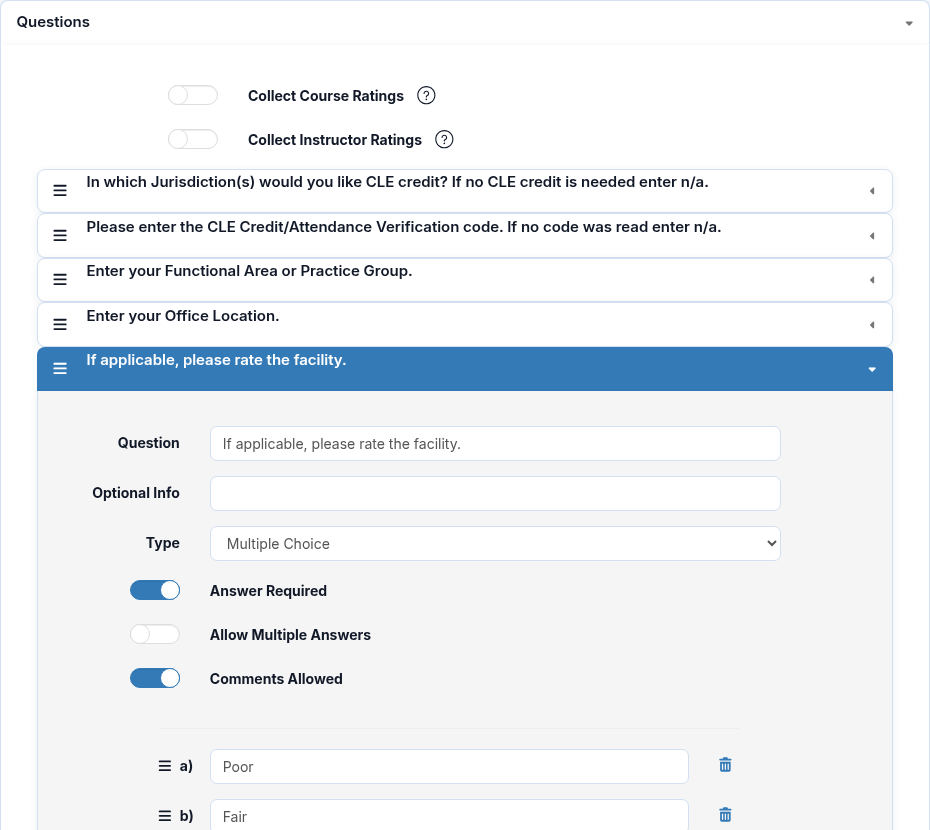
The question types are:
- Single Line Text: a short typed answer.
- Paragraph: a longer typed answer. The box grows as the attendee types.
- Multiple Choice: a list of answers. For a yes/no question, use the two answer boxes it starts with. Turn on Allow Multiple Answers to let attendees pick more than one.
- 5-Star Rating: a rating from one to five stars.
To check the form, select Test Evaluation Form on the form's page.
Edit a Question After People Answer It
Once someone has answered a question, it's locked, and a warning says how many people answered it. Select Unlock to change it.
Answers already submitted stay as they were. Avoid changing what a question means, or your reports will mix answers to two questions.
Make a Form the Default for New Courses
- Open the form from More › Evaluation Forms.
- Select Make Default.
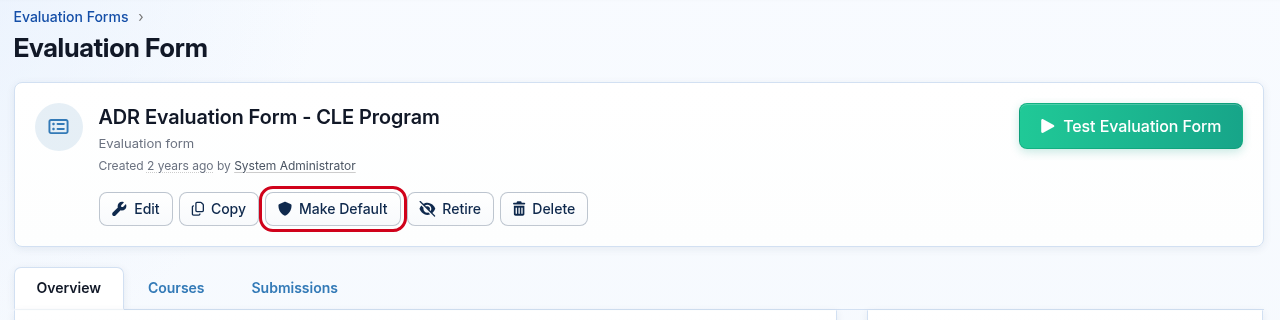
New Courses then start with this form. Existing Courses keep their form, so change those as described next.
Set the Form on Courses
The form belongs to the Course, not the Event. Every Event of the Course uses the Course's form.
To set it on one Course:
- Open the Course and select Edit.
- In Evaluation, choose the form under Evaluation Form.
- Select Save Course.

To set it on many Courses at once:
- In InstructorSite, select Courses.
- Select the Courses, or select Select all.
- Select Bulk edit, then Evaluation.
- Choose Replace.
- Under Select an Evaluation Form, choose the form.
- Select Save.
- Enter the number of Courses to confirm.
Administrators can also add or remove Courses on the form's Courses tab.
Review the Answers
- Open the form from More › Evaluation Forms.
- Select the Submissions tab.
- To narrow the list, use the Courses, Course Type, Users, Instructors or Status filters.
- Under a person's name, select Show answers.
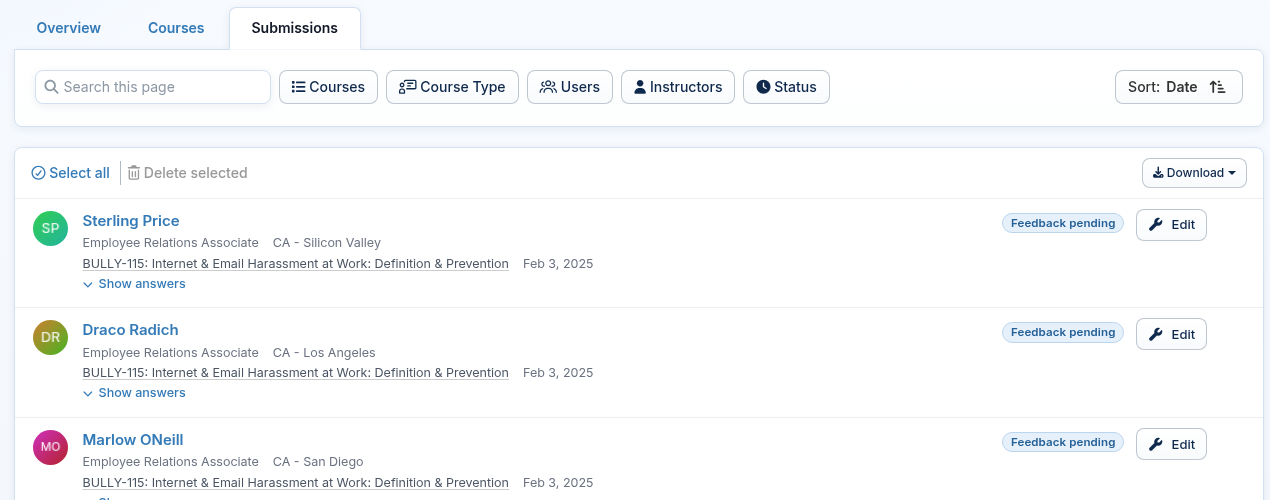
To work with many answers, select Download, choose a date range, then select Download to Excel. You can also run Reports › Learners › Evaluation Submissions - Feedback.
What Happens Next
People who complete an On-Demand Course get the evaluation on their To-Do page automatically. For a Live Event, you send the requests from the Event after recording attendance. See Send Evaluations After an Event.
Frequently Asked Questions
Why do attendees get the built-in form instead of mine?
Set your form on the Course. Making a form the default only affects new Courses, and an Event always uses its Course's form.
How do I use my form on all existing Courses?
Select all Courses on the Courses page, then use Bulk edit › Evaluation. The steps are under Set the Form on Courses, above.
Can I get an email when someone submits the form?
Yes. Add yourself under Default Moderators and turn on Send Alerts. For Courses whose Department has its own moderators, the alert goes to those moderators instead.
What do learners see of the answers?
It depends on your Evaluation settings. If they allow it, Course star ratings show on the Course in LearningSite. Comments and instructor ratings show only after a moderator publishes them. Answers to your own questions are never shown to learners.
How do I stop using a form?
Edit the form, set Status to Retired, then select Save Evaluation. Its Courses move to the default form.
The Retire button on the form's page doesn't move them, so use the editor. You can't retire the default form, and you can't delete the default or built-in form.