
CLESite and CPDSite in the refresh: preview
Preview · work in progress
With the visual update, CLESite and CPDSite become places people use every day, not only where licenses and settings are set up. CLE coordinators get views for following compliance across the firm, and attorneys get a page that shows their own. This article covers who can open each site, what attorneys see, what coordinators see, what moves out of LearningSite and InstructorSite, and a clearer compliance report.
These screenshots come from a development build with sample data. The design is still being refined, so details will change before release.
Who can open CLESite and CPDSite
Today only administrators and CLESite or CPDSite Admins can open these sites. Once a site is licensed, it opens for two kinds of people:
- Coordinators: administrators, and CLESite Admins (CPDSite Admins for CPDSite). They land on the Plans list and have everything: Plans, Users, Reports, a To-do page, search and Settings.
- Attorneys: anyone enrolled in a licensed, active plan of that kind, whether or not the jurisdiction has a compliance requirement. They land on their own My compliance page, and that page is all they see.
Both open the site from the column of app icons on the left of the screen. For coordinators, the CLE icon reads "Everyone's CLE compliance". For attorneys, it reads "Your CLE compliance". Someone enrolled only in CPD plans sees only the CPD icon. Plans that are staged, retired or unlicensed don't count.
A coordinator who is also enrolled gets both: the full site, plus My compliance as the first link in the top bar. The site opens on My compliance for them, and their CLE icon reads "Your CLE compliance".
What attorneys see
An attorney opens CLE from the app icons and lands on My compliance.

- Upcoming deadlines: under their name, the plans that still need credits, by the date each is due, nearest first. A date that has passed shows in red, and each plan's name opens its details.
- Their plans: each licensed, active plan they owe credit on, in A–Z order, with the jurisdiction's code (such as NY) as its icon, progress, days left, pace and the period arrows. Each plan opens its full details, including Find CLE Programs (Find CPD Activities in CPDSite), which lists courses that earn that credit.
- Help: Help at the bottom of the app icons opens Contact us, which reaches your firm's training team.
- Nothing else: no Plans, Users, Reports, search or Settings. Any other link they follow, such as a plan, a course or a credit, opens in LearningSite as it does today.
- On a phone: the app icons and Home are in the menu.
What moves out of LearningSite
The My CLE Plans tab on LearningSite's Plans page (My CPD Plans or My CLE/CPD Plans on some sites) goes away, and My compliance takes its place. Nothing is lost:
- An attorney's CLE and CPD plans are still listed under My Plans, and each plan's own page is still there. Its top now shows the plan as a row, as on My compliance, with its compliance report below.
- Old links and bookmarks to the tab open My compliance.
- CLE and CPD plans leave LearningSite's To-Do list. Instead, the CLE (or CPD) icon shows how many of an attorney's plans still need credits this period, and My compliance lists them under Upcoming deadlines. Each plan counts once, where today there can be a to-do for each period, and plans with no compliance requirement are no longer listed as to-dos.
If your internal guides tell attorneys to open the My CLE Plans tab, that step changes to opening CLE from the app icons.
What coordinators see
CLESite and CPDSite use the same plan and people pages as InstructorSite, so the two stay in step.
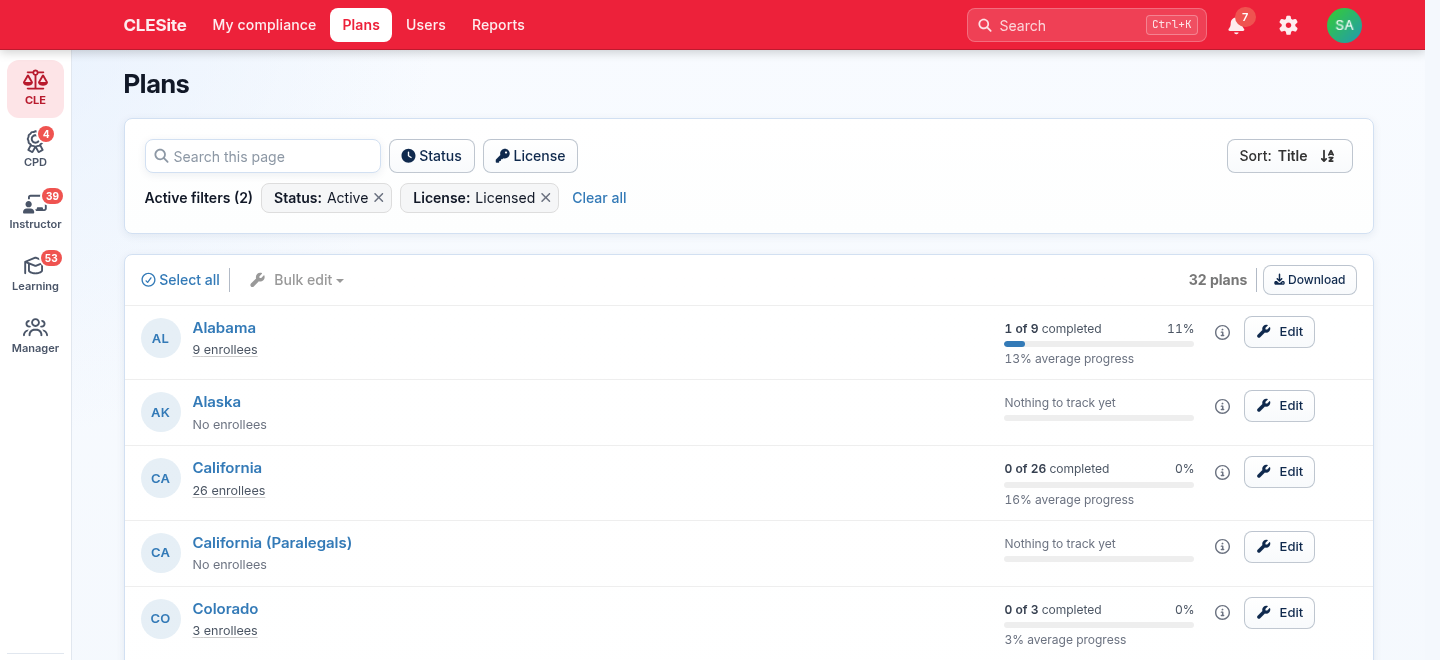
- Plans: every jurisdiction's plan, filtered by Status and License (CPDSite adds Country), with each plan's progress across its enrollees. Each plan shows its jurisdiction's code, such as AZ or NSW, as its icon. The ⓘ button shows a plan's rules, deadline and time zone. Select all to use Bulk edit, or Download the list.
- A plan's page: its rules, its enrollees with their progress, pace and deadline, enrolling and auto-enrollment, sharing by email, and Edit for its compliance settings.
- Users: everyone, with each row showing where they're licensed.
- A person's page: each bar admission, Edit licenses, and their CLE (or CPD) plans with progress.
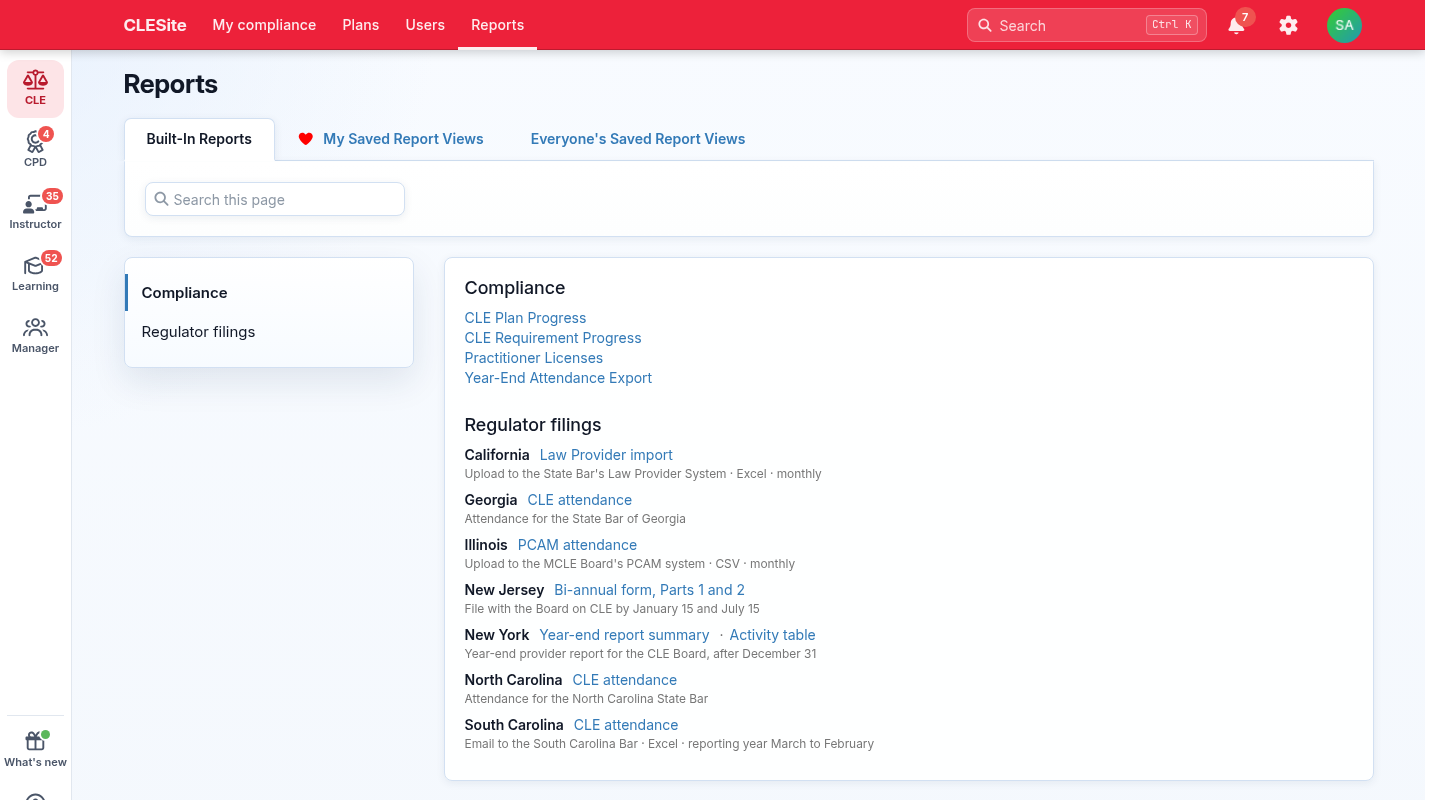
- Reports: the CLE (or CPD) reports, under two headings. Compliance has Plan Progress, Requirement Progress (formerly Jurisdiction Overall Progress), Practitioner Licenses (formerly Practitioner Details) and Year-End Attendance Export. Regulator filings has one row per jurisdiction, saying where each file goes and when. Before you download a filing, it shows how many records the file will hold and its first rows, and it flags rows the regulator would reject, such as a missing bar number. New Jersey's Parts 1 and 2 are on one page.
- Saved report views: save, schedule and share views of these reports, as in InstructorSite. Each site lists its own views.
- To-do: the plans you're enrolled in that still need credits, and CLE (or CPD) event credits waiting for approval. You still approve credits on the event in InstructorSite, and the to-do links there. The bell in the top bar opens this page.
- Search: across the site's plans, the people enrolled in them, its reports and its saved report views, from the top bar.
- Help: at the bottom of the app icons: help for the page you're on, the help articles, and a way to contact support. CLESite and CPDSite also get a Help page of their own.
- Impersonate: impersonating an attorney shows the site as they see it, on their My compliance page.
What moves out of InstructorSite
- The CLE and CPD reports leave InstructorSite's Reports list: the jurisdiction reports and regulator filings (California, Georgia, Illinois PCAM, New Jersey, New York, North Carolina, South Carolina and Western Australia), Year-End Attendance, Jurisdiction Overall Progress and Practitioner Details. Coordinators find them under Reports in CLESite and CPDSite. Saved report views you already have of them still open in InstructorSite.
- The credits reports stay in InstructorSite, with new names (Credit History is now Credits Awarded, for example) and a Category filter: CLE, CPD or Firm-specific.
- Credits waiting for approval on CLE and CPD events move to the CLESite or CPDSite To-do page, for coordinators who can also open InstructorSite. Anyone else keeps seeing them where they do today.
If your internal guides send coordinators to InstructorSite for these reports, that step changes to opening Reports in CLESite or CPDSite.
A clearer compliance report
The compliance report for an attorney's plan opens on what's still needed. That's the report coordinators open from a plan's enrollees, and the one attorneys see for their own plans.
- Credits to go: each requirement says what it still needs, such as "2 needed", "Done" or "No minimum", with Find CLE Programs (Find CPD Activities on a CPD plan) beside the ones that need credit. A total that's covered while a minimum inside it is still open no longer reads as done. It says how many credits the minimums below it still need.
- Where to start: a card at the top shows one bar for the time gone and the credits earned, with the days left, percent complete and a status: on track, off pace, past due, not met or completed, and the open requirements are listed in the order to take them.
- Show the math: the Required, Earned and Applied columns, and any carryover or deduction, are behind one switch. The report remembers your choice. A printed copy always includes the math.
- Sections that fold: the report's sections, such as the dashboard and the rule summary, open and close, and a closed one says what's in it.
- Programs with no deadline: most firm programs don't show the card. The plan's heading shows the percent and, for a plan that requires only courses, how many of them are done.
- Required courses: each course's status is shown in words. The plan's Overview and its page in LearningSite list courses the same way.
- Closed periods: they read as a record: met, not met, or how many credits short. The card says how the period ended, such as the date it was completed.
Percent complete changes for some attorneys. It's now worked out from the credits still needed, so a minimum inside a total no longer counts twice. Some figures go up and some go down. For example, an attorney whose total is covered but who still owes 2.5 credits in minimums inside it might move from 93% to 90%. 100% still means every requirement is met, so completion dates and certificates are decided exactly as before. Each attorney's figure changes the next time their progress is recalculated, so for a while a plan can show some figures worked out each way.
Extensions. When an attorney's prior period is on an extension and isn't complete yet, that period is due first:
- Their report opens on the prior period. The current period shows a Due first band that names the extended deadline and what's still needed.
- Days left count down to the extended deadline, and both periods show as off pace until the prior one is done.
- LearningSite's plan list and the CLESite to-do list it as Prior period due.
- Deadline reminder emails count down to the extended deadline and say which deadline it was extended from. The requirements they list add up to the credits actually owed.
- The activity list groups credits earned during the extension and shows how they were shared between the two periods.
England and Wales. CPD plans for England and Wales show the year's two steps, the development plan and the declaration, instead of points. Progress reads as "1 of 2", and the form for each step works whether the attorney or a coordinator fills it in.
Plans with no compliance requirement
Some jurisdictions have no CLE requirement, such as the District of Columbia, Maryland, Massachusetts, Michigan and South Dakota, and Alberta for CPD. Attorneys enrolled in these plans now see them on My compliance, marked No compliance requirement where progress would be. Coordinators can see who's enrolled. These plans still have no compliance settings, bulk edits or pace alerts, because there's nothing to track.
For the rest of the visual update, see A fresher look for UniversitySite: preview.
Questions? Reply on the UniversitySite Community, or email support@profiscience.com.
Screens shown with sample data. Updated October 20, 2026.