
Sync Practitioner Details with the User Sync Tool
Sync your attorneys' Practitioner Details, such as bar numbers and admission dates, from your firm's own database into UniversitySite with the User Sync tool. This is for the firm's IT team or whoever runs the user sync. The sync adds and updates Practitioner Details, and UniversitySite uses them to enroll people in the right CLE or CPD Plan and set their deadlines.
If your screens look different from these, your site is still on the previous design. The tasks are the same, but some labels and their places differ.
Before You Begin
- You need the UniversitySite User Sync tool on a Windows server, already syncing user accounts. To get the latest version, see Update Your User Sync Tool.
- You need a database view, or a CSV file, with one row for each person in each jurisdiction. A person licensed in New York and New Jersey has two rows.
- Each row needs the person's email address as it is in UniversitySite, and the jurisdiction's name. See Fields You Can Sync below.
- Leave out staff who don't need CLE or CPD tracking. The sync is only for people with Practitioner Details.
Set Up the Practitioner Details Sync
- In the User Sync tool, select the Setup tab.
- Under Configure Source User Data, select your data source, then select Edit.
The Profiscience User Import - Data Source Configuration window opens. - Select the Practitioner Details tab.
- Select Enable.
- In DB Connection, enter the connection string for your database or CSV file.
- In DB Select, enter the query that returns your Practitioner Details rows.
- Select Preview Data and check the rows.
- Under Field Mappings, choose the column for each field.
- Select Save Practitioner Details Settings.
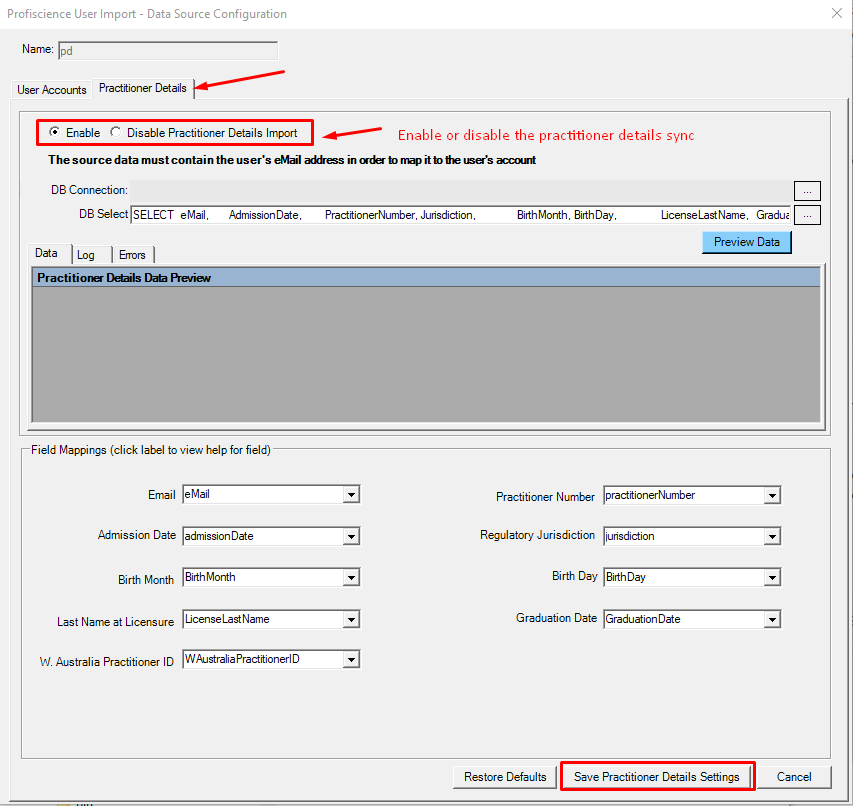
The User Accounts and Practitioner Details tabs save separately, and each can be enabled on its own. When both are enabled, accounts sync first, then Practitioner Details.
Fields You Can Sync
| Field | What to send |
|---|---|
| Required. The person's email address in UniversitySite, up to 100 characters. | |
| Regulatory Jurisdiction | Required. The jurisdiction's name, spelled exactly as in UniversitySite. See the next section. |
| Practitioner Number | The bar or practitioner number. |
| Admission Date | A date. Send it if the jurisdiction sets deadlines from the admission date. |
| Birth Month (1-12) and Birth Day | Numbers. Send them if the jurisdiction sets deadlines by birthday. |
| Last Name at Licensure | The last name when the person was licensed, up to 100 characters. |
| Graduation Date | The law school graduation date. |
| W. Australia Practitioner ID | For Western Australia, up to 100 characters. |
| Compliance Group | The compliance group's name, for jurisdictions that use groups. |
The tool lists more fields for specific jurisdictions, such as Hong Kong and Florida. Select a field's label in Field Mappings to see its help. Only send the fields your jurisdictions need.
Match Jurisdiction Names
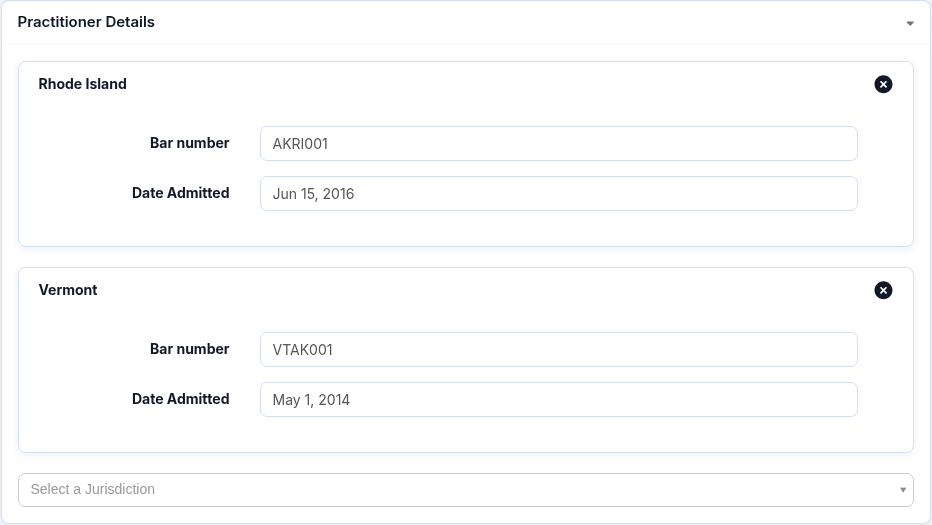
Each Regulatory Jurisdiction value must match a jurisdiction name in UniversitySite exactly, such as New York or California (Paralegals). Capitals don't matter. To see the names your site uses, open a user in InstructorSite, select Edit, and open Select a Jurisdiction under Practitioner Details.
The list shows your site's licensed jurisdictions, except ones that person already has. Leave off "(Enrolled in plan)" if it appears after a name.
What Happens Next
- A row whose email and jurisdiction aren't on the person yet is added. A row that matches is updated if anything changed.
- A blank value doesn't erase what's in UniversitySite. The sync never removes Practitioner Details.
- After an add or update, the person is enrolled in that jurisdiction's CLE or CPD Plan if they aren't already. This is skipped if the Plan's auto-enrollment is suspended, or the person is disabled or external.
- An update also recalculates the person's deadline.
To check the results, in InstructorSite select the gear icon, then Global Settings, then User Sync Logs. Select the Practitioner Sync tab. It's unavailable until the first Practitioner Details sync runs.

Frequently Asked Questions
Why does the log say "No user exists with eMail"?
Correct the email in your source, or sync the person's account first. The email must match an existing UniversitySite user.
Why does the log say "No jurisdiction: … is defined"?
Spell the jurisdiction exactly as UniversitySite does. See Match Jurisdiction Names above.
Can I sync from a CSV file instead of a database?
Yes. Use a connection string for CSV files in DB Connection, and select from the file in DB Select. Close the file first, because the sync can't read it while it's open in Excel.
Contact support@profiscience.com if you need an example.
How do I remove a jurisdiction from someone?
Remove it in the user editor's Practitioner Details section. The sync only adds and updates.
Why is the Practitioner Sync tab greyed out?
Run a sync with Practitioner Details enabled. The tab opens once there are Practitioner Details logs.
Where do I set up the User Sync for user accounts?
Use the data source's User Accounts tab. Copy the Web Service URL and API Key from the Overview tab of User Sync Logs. Paste them into User Web Service URL and User Web Service Access ID on the tool's Setup tab.