
CLE Autofill - Add an Activity from a New York CLE Certificate
CLE Autofill uses information from a New York CLE Certificate of Attendance PDF to populate a new Activity for a learner. It reduces manual entry while keeping the certificate beside the Activity form so you can compare the extracted information with the source document before saving.
Important: CLE Autofill currently supports New York CLE certificates. Support for additional jurisdictions is planned and will be prioritized based on customer demand and need. CLE Autofill assists with data entry, but it does not submit an Activity automatically. Review every populated field and make any needed corrections before submitting.
Before You Begin
- You must have permission to add an Activity for the learner.
- The Activity must apply to a New York CLE plan.
- Use the learner's New York CLE Certificate of Attendance as a PDF.
Open CLE Autofill
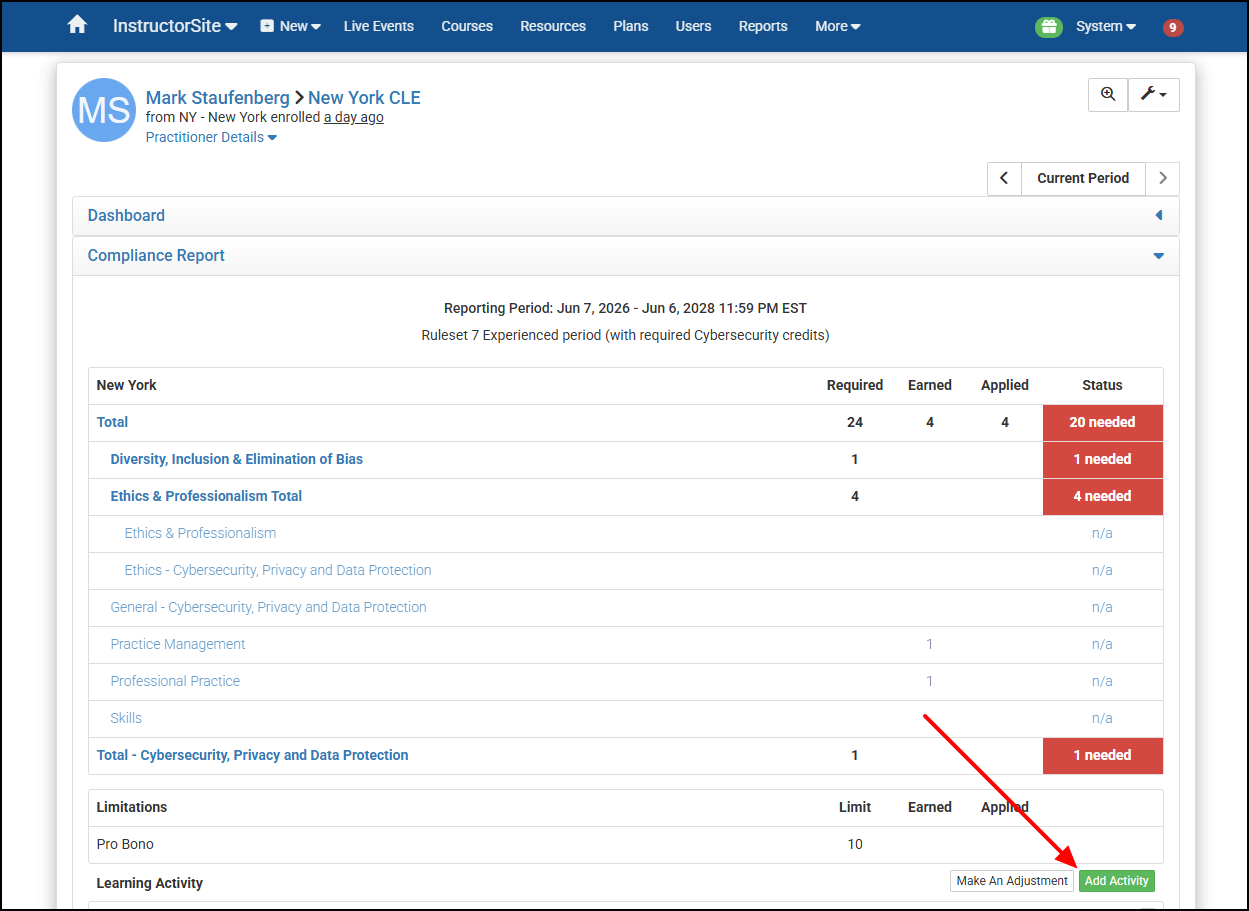
- Open the learner's Compliance Report.
- Select Add Activity at the lower-right corner of the report.
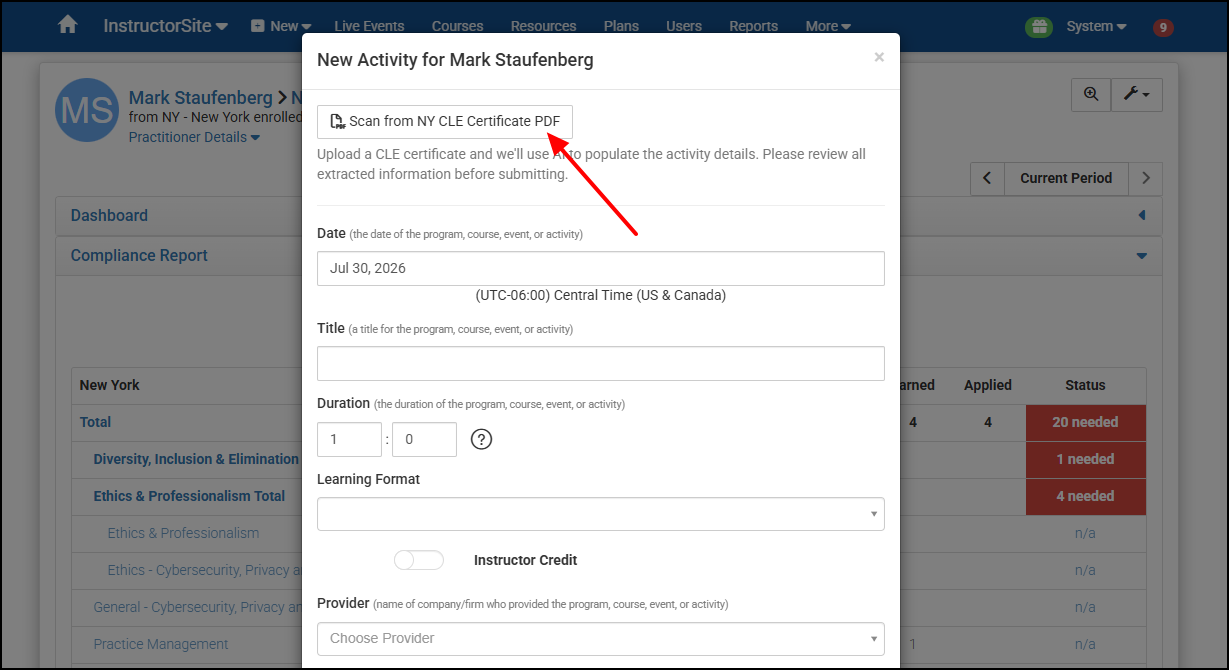
- At the top of the New Activity window, select Scan from NY CLE Certificate PDF.
- Choose the certificate PDF from your device. UniversitySite scans the certificate and opens it beside the Activity form.
Review the Populated Activity
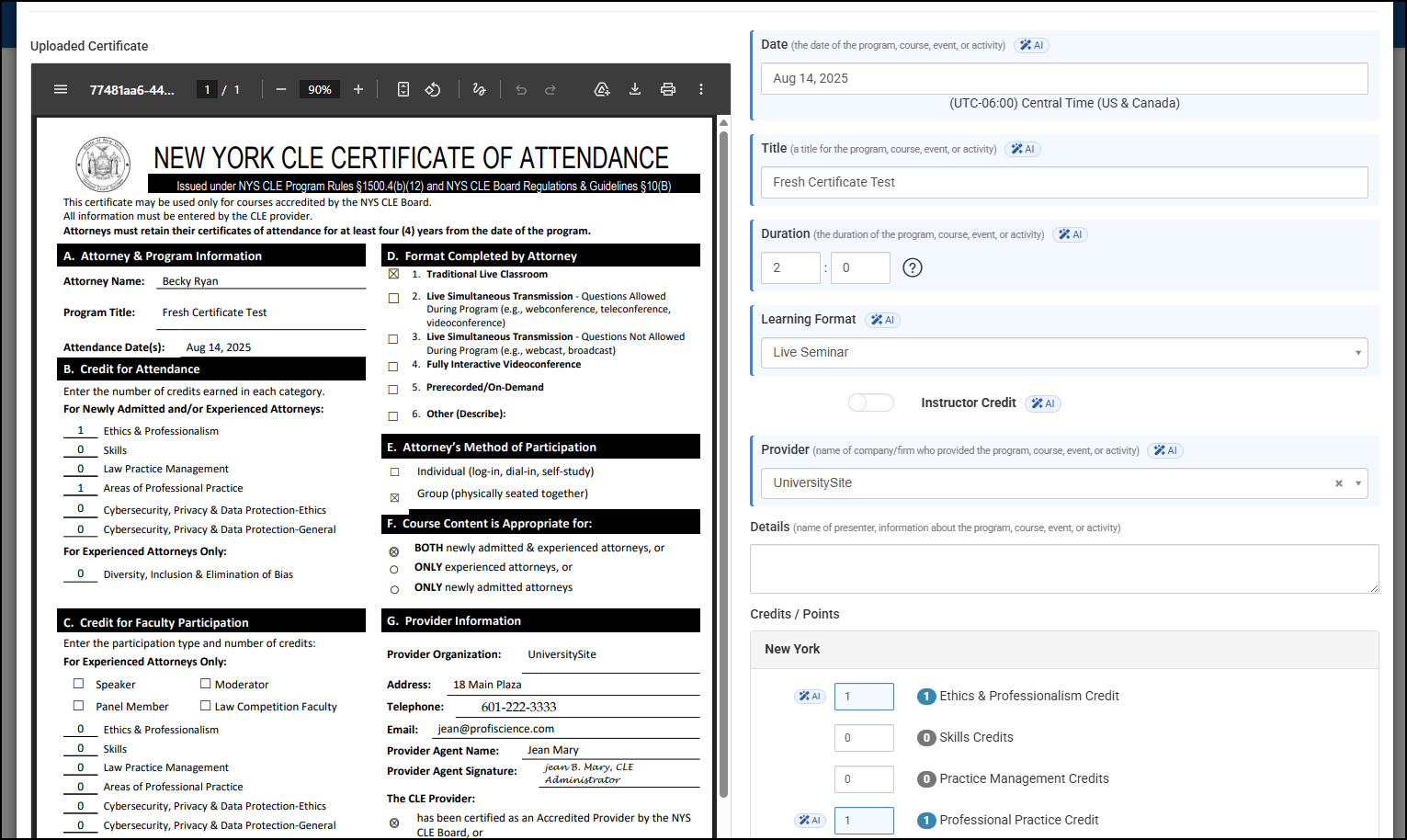
CLE Autofill can populate information such as the Activity title, attendance date, duration, provider, learning format, instructor-credit setting, New York credit categories, and whether the course applies to experienced or newly admitted attorneys. An AI badge identifies values populated from the certificate. If a value could not be determined, the form identifies the field so you can complete it manually.
The uploaded certificate remains visible beside the form while you review the Activity.
Handle Warnings
Certificate Not Recognized
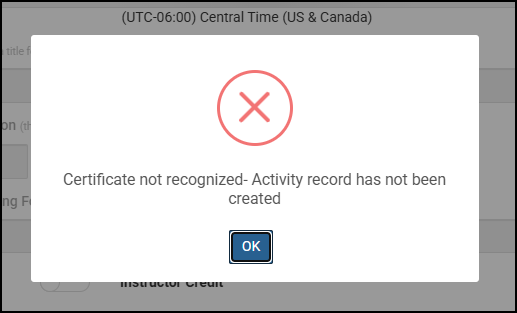
If the PDF is not a recognized New York CLE certificate or cannot be read, UniversitySite displays Certificate not recognized—Activity record has not been created and returns you to the plan. Confirm that you selected the correct PDF before trying again.
Name Mismatch
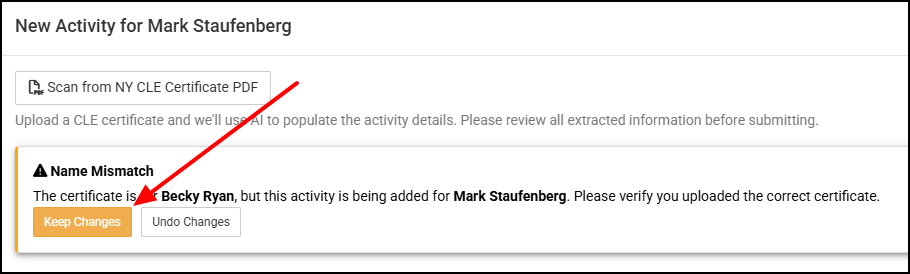
If the attorney name extracted from the certificate differs from the selected learner, verify that you uploaded the correct certificate. Select Keep Changes only when the certificate belongs with this learner, or select Undo Changes to remove the certificate and its populated values.
Possible Duplicate
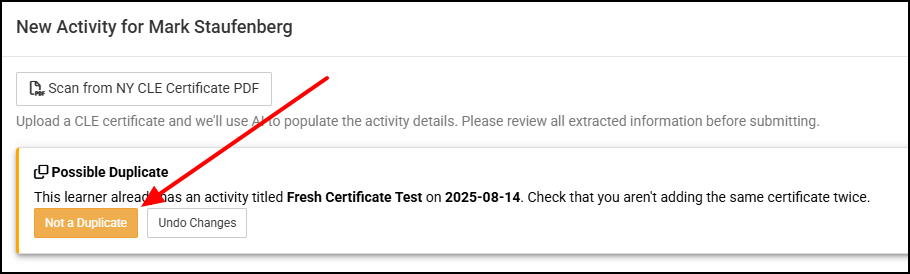
If the learner already has an Activity with the same title and date, CLE Autofill warns that the certificate may already have been added. Review the existing Activity. Select Not a Duplicate to continue or Undo Changes to remove the new certificate and populated values.
Credit Total Mismatch
If the extracted credit categories do not add up to the total printed on the certificate, compare the credits with the PDF. Choose whether to keep the extracted credits or remove them, then enter the correct values before submitting.
Submit the Activity
- Compare the populated fields and credits with the certificate preview.
- Correct any inaccurate values and complete any fields CLE Autofill could not determine.
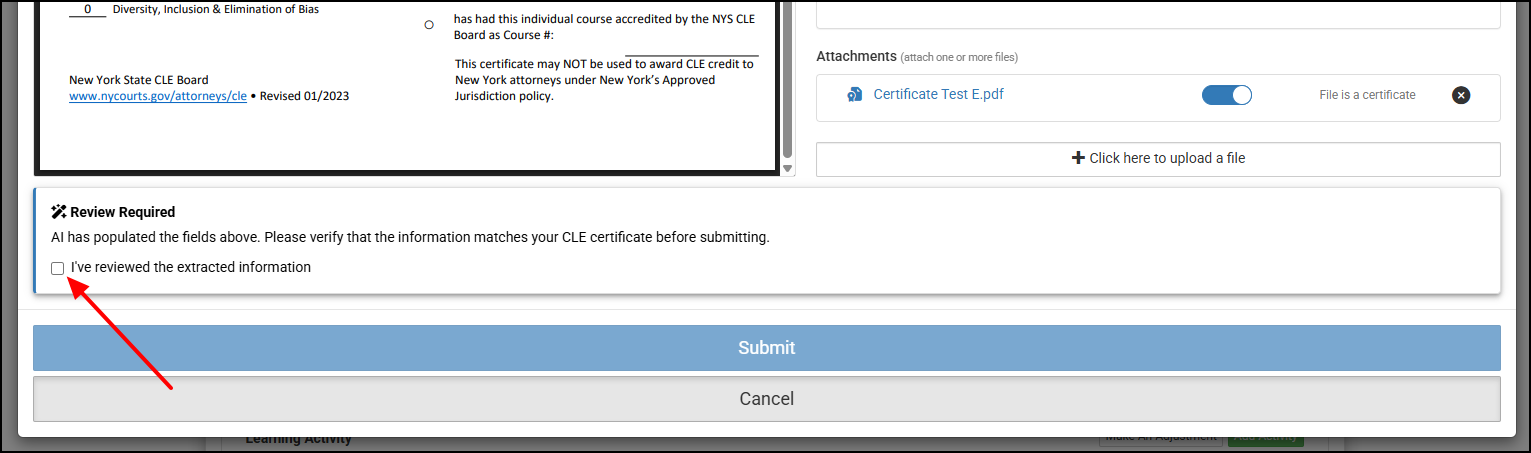
- Select I've reviewed the extracted information. The Activity cannot be submitted until you acknowledge this review.
- Select Submit to create the Activity and attach the uploaded certificate.
Frequently Asked Questions
Which certificates does CLE Autofill support?
CLE Autofill currently supports the New York State CLE Board Certificate of Attendance PDF. Support for additional jurisdictions is planned and will be prioritized based on customer demand and need.
Will CLE Autofill support additional jurisdictions?
Yes. Profiscience plans to expand CLE Autofill to additional jurisdictions, prioritizing the certificate formats with the greatest customer demand and operational need. Until support for a jurisdiction is announced, enter those Activities through the standard Add Activity workflow.
Where is CLE Autofill available?
Open a learner's New York CLE Compliance Report and select Add Activity. The Scan from NY CLE Certificate PDF button appears at the top of the New Activity window. CLE Autofill is an administrator workflow; it is not available when a learner adds an Activity in LearningSite.
What information can CLE Autofill populate?
Depending on the certificate, CLE Autofill can populate the Activity title, attendance date, duration, provider, learning format, instructor-credit setting, New York credit categories, and the experienced/newly admitted attorney selection.
Does CLE Autofill create the Activity automatically?
No. CLE Autofill populates a draft Activity. You must review the extracted information, acknowledge that review, and select Submit.
What should I do if a field is blank or incorrect?
Use the certificate preview to verify the value, then enter or correct it directly in the Activity form before submitting. An AI badge identifies populated fields, and a message identifies fields CLE Autofill could not determine.
What happens to the uploaded PDF?
After you submit the Activity, the certificate PDF is attached to the Activity record. If you select Undo Changes before submitting, the certificate and its populated values are removed.
Why did I receive a possible-duplicate warning?
The learner already has an Activity with the same title and date. Review the existing record before continuing so the same certificate is not added twice.
Why did I receive a name-mismatch warning?
The attorney name extracted from the certificate did not match the selected learner's name. Confirm that the certificate belongs to that learner before keeping the changes.
What if the certificate is not recognized?
Confirm that the file is a readable New York CLE Certificate of Attendance PDF. When the certificate is not recognized, no Activity is created and UniversitySite returns you to the plan.
Does CLE Autofill guarantee the Activity or awarded credit is correct?
No. CLE Autofill is a data-entry aid. The person submitting the Activity remains responsible for comparing the populated information with the certificate and applying the organization's review and credit-award procedures.
Expected Result
After submission, the learner has a new Activity containing the reviewed certificate information, and the uploaded PDF is attached to the Activity record.