
LearningSite Home Page Widgets
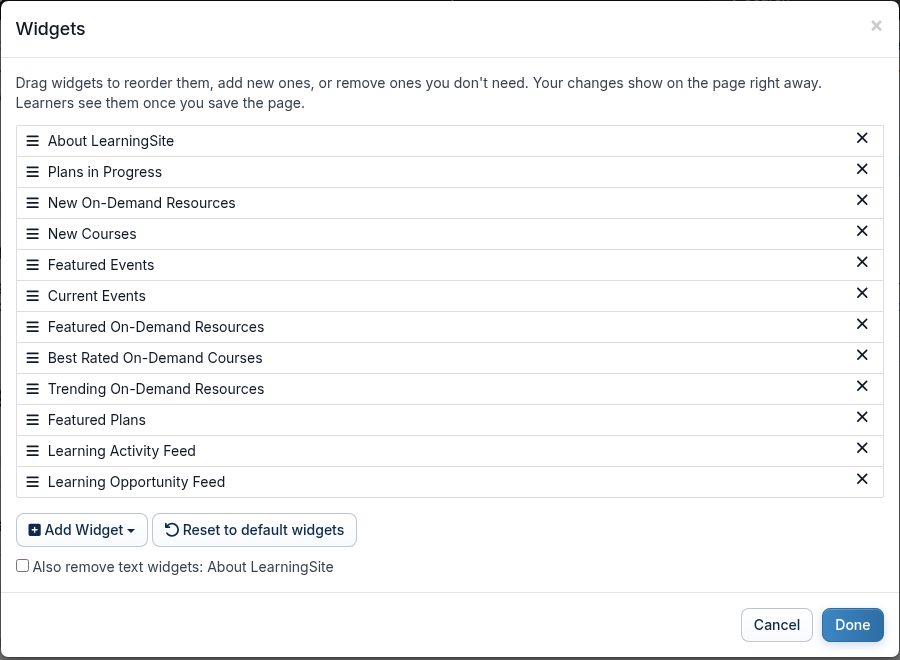
Widgets are the sections of the LearningSite home page below the hero, such as Plans in Progress or Current Events. Administrators choose which widgets appear, in what order, and who sees each one. Text widgets hold your own content.
If your screens look different from these, your site is still on the previous design. The tasks are the same, but some labels and their places differ.
You need to be a LearningSite administrator to change widgets. Widgets exist only in LearningSite, not in InstructorSite.
Available Widgets
| Widget | What it shows |
|---|---|
| Custom Content (text widget) | Your own text, images, links or HTML. You can add as many as you like. |
| Plans in Progress | The learner's Plans: important deadlines, Plans in progress and Plans recently completed. |
| New On-Demand Content | On-Demand content added in the past 30 days. |
| New Instructor-Led Courses | New Instructor-Led Courses added in the past 30 days. |
| Featured Events | Upcoming Events tagged Featured, or whose Course is tagged Featured. |
| Current Events | Upcoming Events in the learner's area. |
| Featured On-Demand Resources | On-Demand resources tagged Featured. |
| Best Rated On-Demand Courses | The top-rated On-Demand Courses. |
| Trending On-Demand Resources | The most viewed On-Demand resources in the past 30 days. |
| Featured Plans | Plans tagged Featured that the learner can join: not ones they are enrolled in or have completed. |
| Learning Activity Feed | What others have been up to: Events attended, Courses completed, content viewed. |
| Learning Opportunity Feed | New and recently updated Courses, videos, Events and Plans. |
A widget with nothing to show for a learner is hidden from them. For example, Current Events doesn't appear for someone with no upcoming Events they can see.
Add, Remove or Reorder Widgets
- On the LearningSite home page, select Customize page.
- In the editing bar, select Widgets.
- To reorder, drag a widget by its handle (☰).
- To remove a widget, select the ✕ next to it.
- To add one, select Add Widget, then choose it.
Widgets already on the page are greyed out. Custom Content adds a new text widget. - Select Done.
- In the editing bar, select Save and finish.
Learners see the changes now.
Removing a text widget deletes its content when you save the page, and it can't be brought back. Standard widgets can be added again at any time.
Reset to default widgets puts back the standard set. Your text widgets are kept, unless you tick Also remove text widgets. Then the standard About LearningSite text widget comes back in their place.
Choose Who Sees a Widget
- On the home page, select the pencil at the top right of the widget.
- Under Audiences, choose the audiences that should see it. Leave it blank to show it to everyone.
- Save the widget.
Edit a Text Widget
- On the home page, select the pencil at the top right of the widget.
Edit text widget opens. - Change the Title if you want.
- To show the widget to some people only, choose Audiences. Leave it blank to show it to everyone.
- Edit the content in the Text view, or the HTML in the Code view.
Split shows the code and a preview side by side. - Select Save and close.
The widget is saved and published right away, to the people in its audiences. If you just added it, the whole page is saved with it.
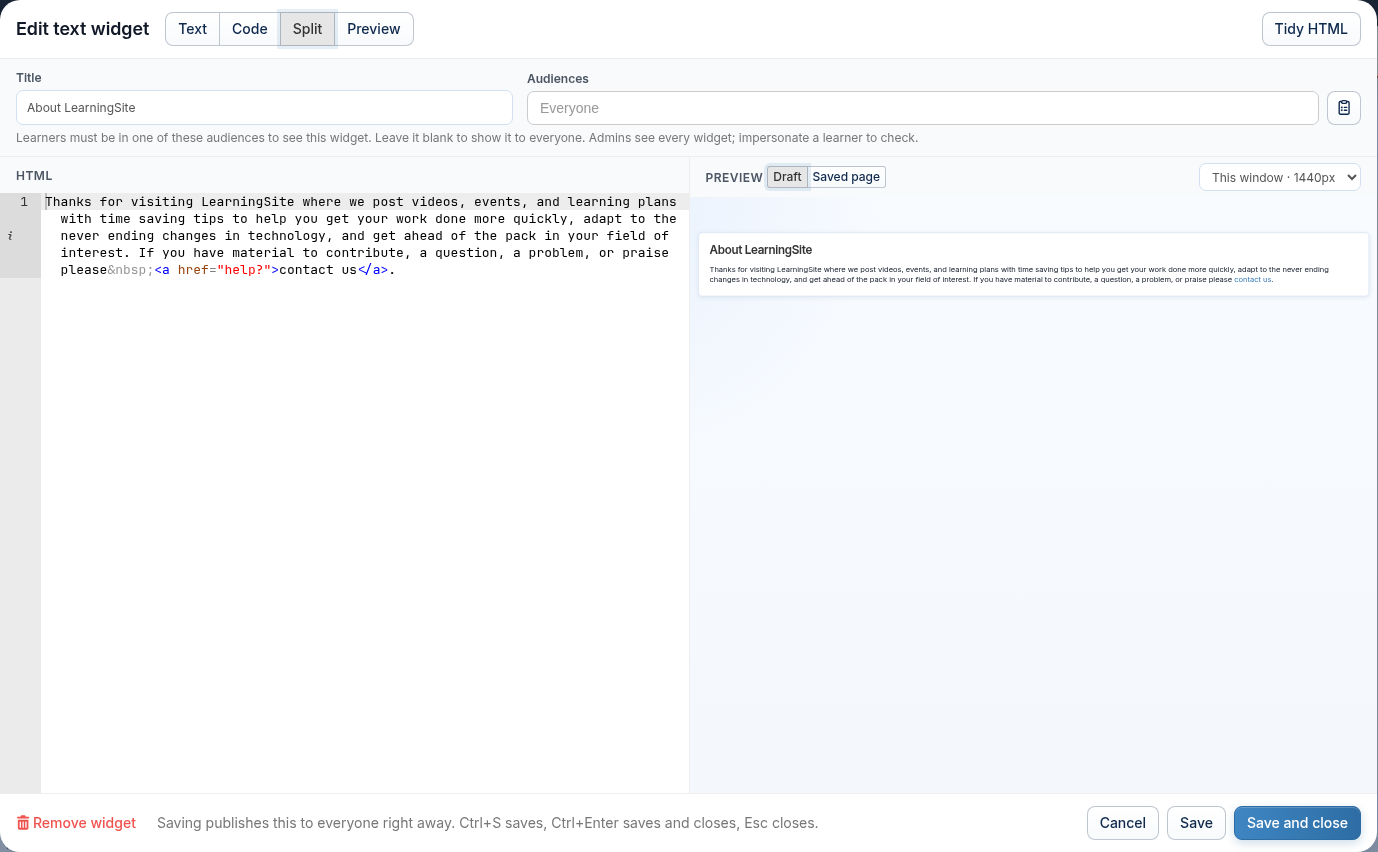
Tidy HTML lays out the code neatly. For the HTML tags a text widget accepts, see LearningSite: Tags Allowed Inside Text Widgets.
Change How Widgets Look
- On the home page, select Customize page.
- Select Page styles.
- Change the colors and layout.
- Select Done.
- Select Save and finish in the editing bar.
For the rest of the home page, see Set Up Your LearningSite Home Page and Branding. For a professionally designed page, see LearningSite Home Page Design.
Frequently Asked Questions
Why doesn't a widget show for learners?
Check its Audiences, and whether it has anything to show. Widgets with nothing to show are hidden from learners but appear while you customize. To see what a learner sees, impersonate one.
How do I change who the "contact us" link emails?
Change your Course Request Routing contacts. In InstructorSite, select the gear icon, then Course Request Routing under Email. The link opens Contact us, which sends to the contacts for the learner's location, or to your firm's own reply address if there are none.
What makes a Plan, Event or resource appear in a Featured widget?
Tag it Featured. Featured Events shows only upcoming Events, and Featured Plans leaves out Plans the learner has already joined or completed.
Can I show different content to different groups?
Yes. Add a text widget for each group, and set its Audiences. Learners see only the widgets for audiences they belong to.